Scroll down and click Create bucket
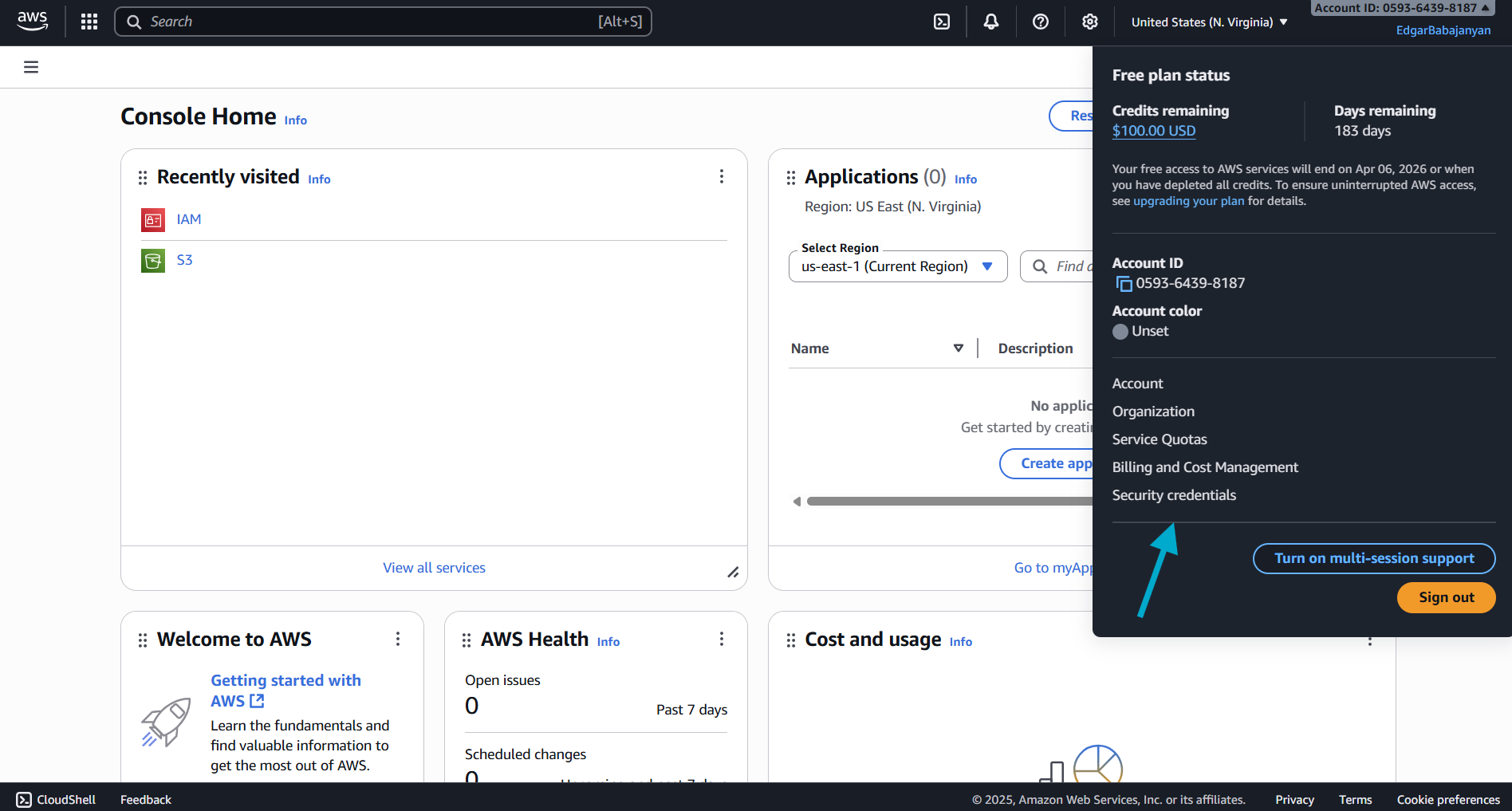 ### Step 2: Create Access Key
1. Scroll down to the **Access keys** section
2. Click the **Create access key** button
### Step 2: Create Access Key
1. Scroll down to the **Access keys** section
2. Click the **Create access key** button
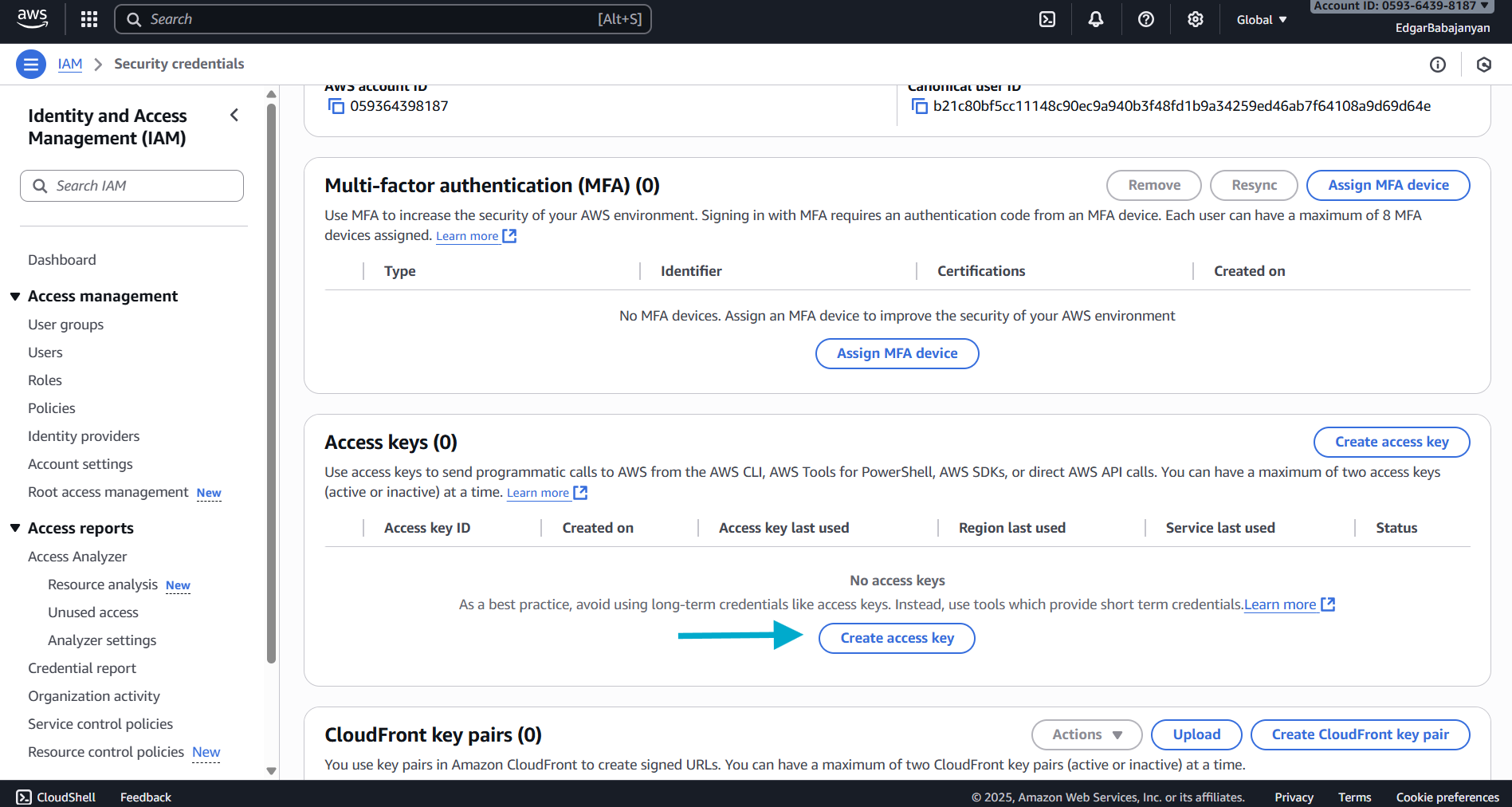 ### Step 3: Retrieve Your Credentials
1. Your Access Key ID and Secret Access Key will be displayed
2. **Important**: This is the only time you can view the Secret Access Key
3. Click **Show** to reveal the Secret Access Key
4. Copy both the Access Key ID and Secret Access Key to a secure location
5. Optionally, download the `.csv` file for safekeeping
### Step 3: Retrieve Your Credentials
1. Your Access Key ID and Secret Access Key will be displayed
2. **Important**: This is the only time you can view the Secret Access Key
3. Click **Show** to reveal the Secret Access Key
4. Copy both the Access Key ID and Secret Access Key to a secure location
5. Optionally, download the `.csv` file for safekeeping
 ### Required IAM Permissions (AWS)
Your AWS access key needs the following permissions to work with Captain:
**For read-only access to S3 buckets:**
```json
{
"Version": "2012-10-17",
"Statement": [
{
"Effect": "Allow",
"Action": [
"s3:GetObject",
"s3:ListBucket"
],
"Resource": [
"arn:aws:s3:::your-bucket-name",
"arn:aws:s3:::your-bucket-name/*"
]
}
]
}
```
Replace `your-bucket-name` with your actual S3 bucket name.
***
## Google Cloud Storage Bucket Setup
### Step 1: Create the Bucket
1. Go to [Google Cloud Console](https://console.cloud.google.com/)
2. Navigate to **Cloud Storage** → **Buckets** → **Create**
3. Enter a unique bucket name (e.g., `company-captain-documents`)
4. Select a **Location type** (Region, Dual-region, or Multi-region)
5. Select **Standard** storage class for general use
6. Under **Access control**, select "Uniform" (recommended)
7. Click **Create**
***
## Google Cloud Storage Credentials
To index files from Google Cloud Storage buckets, you'll need a Service Account JSON key.
### Step 1: Navigate to Service Accounts
1. Go to [Google Cloud Console](https://console.cloud.google.com/)
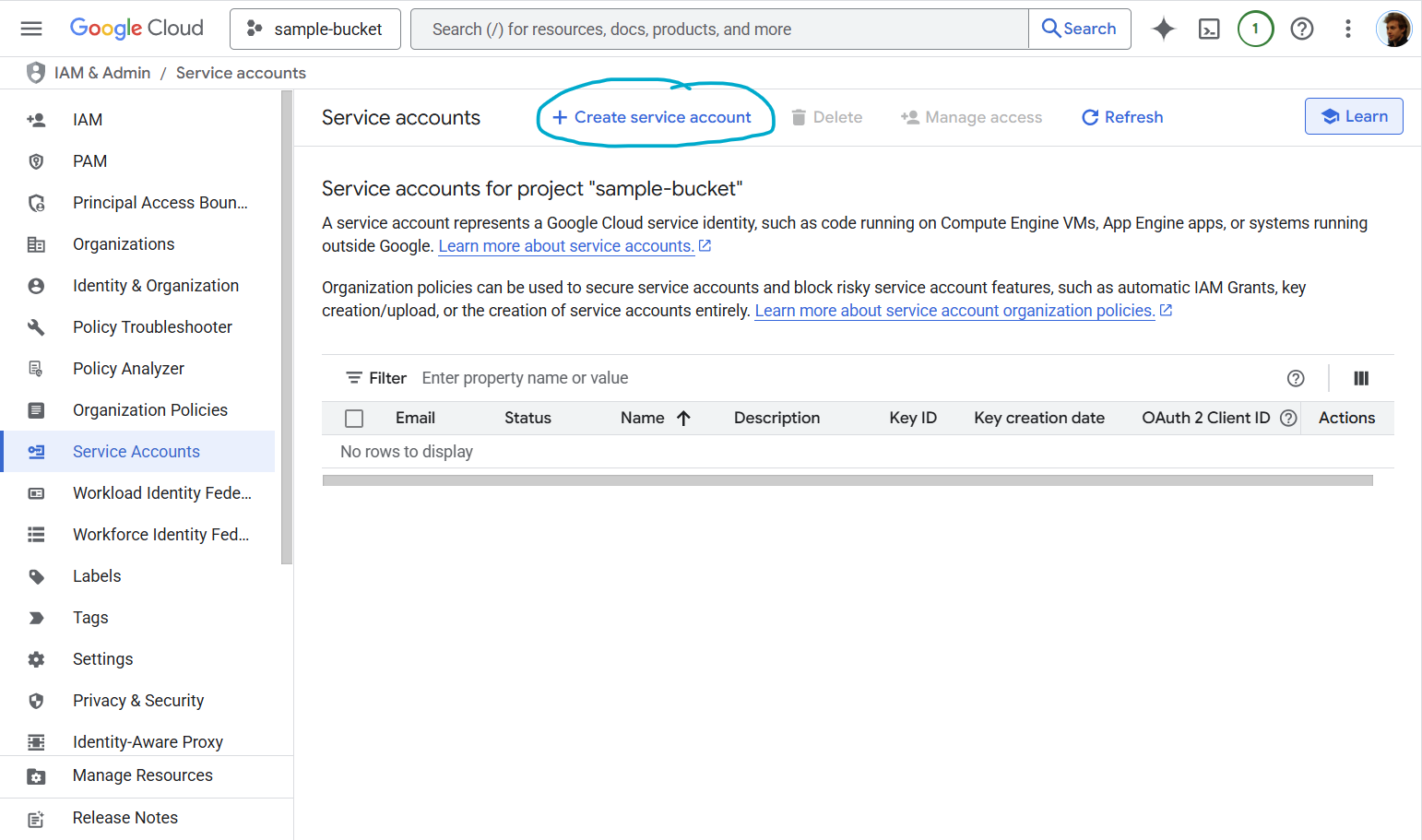
2. Navigate to **IAM & Admin** → **Service Accounts**
3. Click **Create Service Account**
### Required IAM Permissions (AWS)
Your AWS access key needs the following permissions to work with Captain:
**For read-only access to S3 buckets:**
```json
{
"Version": "2012-10-17",
"Statement": [
{
"Effect": "Allow",
"Action": [
"s3:GetObject",
"s3:ListBucket"
],
"Resource": [
"arn:aws:s3:::your-bucket-name",
"arn:aws:s3:::your-bucket-name/*"
]
}
]
}
```
Replace `your-bucket-name` with your actual S3 bucket name.
***
## Google Cloud Storage Bucket Setup
### Step 1: Create the Bucket
1. Go to [Google Cloud Console](https://console.cloud.google.com/)
2. Navigate to **Cloud Storage** → **Buckets** → **Create**
3. Enter a unique bucket name (e.g., `company-captain-documents`)
4. Select a **Location type** (Region, Dual-region, or Multi-region)
5. Select **Standard** storage class for general use
6. Under **Access control**, select "Uniform" (recommended)
7. Click **Create**
***
## Google Cloud Storage Credentials
To index files from Google Cloud Storage buckets, you'll need a Service Account JSON key.
### Step 1: Navigate to Service Accounts
1. Go to [Google Cloud Console](https://console.cloud.google.com/)
2. Navigate to **IAM & Admin** → **Service Accounts**
3. Click **Create Service Account**
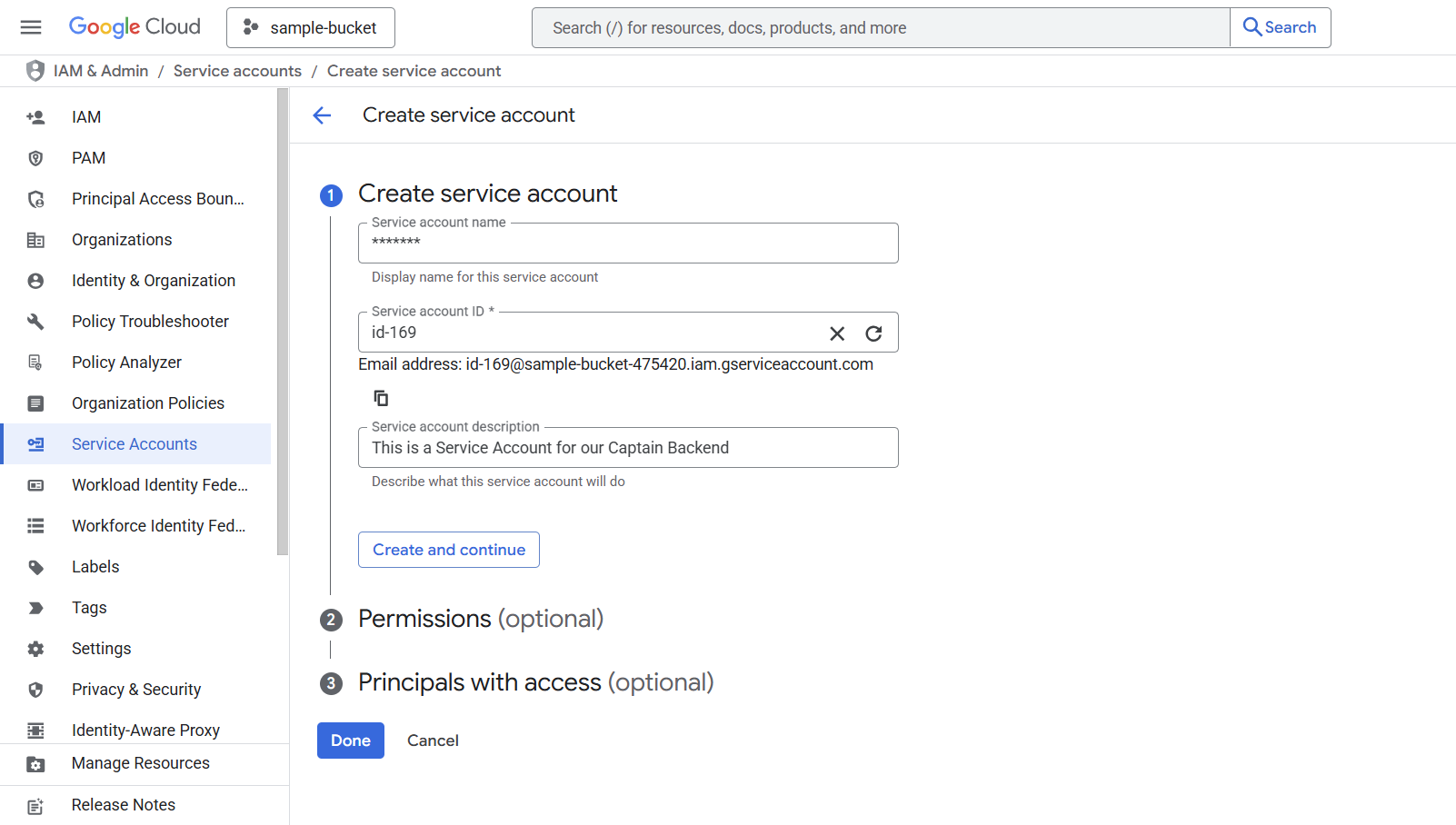
 ### Step 2: Create Service Account
1. Enter a **Service account name** (e.g., `captain-storage-access`)
2. Add a **Service account description** (optional but recommended)
3. The Service account ID will be auto-generated
4. Click **Create and continue**
### Step 2: Create Service Account
1. Enter a **Service account name** (e.g., `captain-storage-access`)
2. Add a **Service account description** (optional but recommended)
3. The Service account ID will be auto-generated
4. Click **Create and continue**
 ### Step 3: Grant Permissions
Under **Grant this service account access to project**, choose the appropriate role based on your needs:
**For read-only access to buckets/objects:**
* Role: **Storage Object Viewer** (`roles/storage.objectViewer`)
**For read/write access:**
* Role: **Storage Object Admin** (`roles/storage.objectAdmin`)
**For full bucket management:**
* Role: **Storage Admin** (`roles/storage.admin`)
Click **Continue** → **Done**
### Step 4: Create and Download JSON Key
1. You'll now see your new service account in the list
2. Click on the service account name
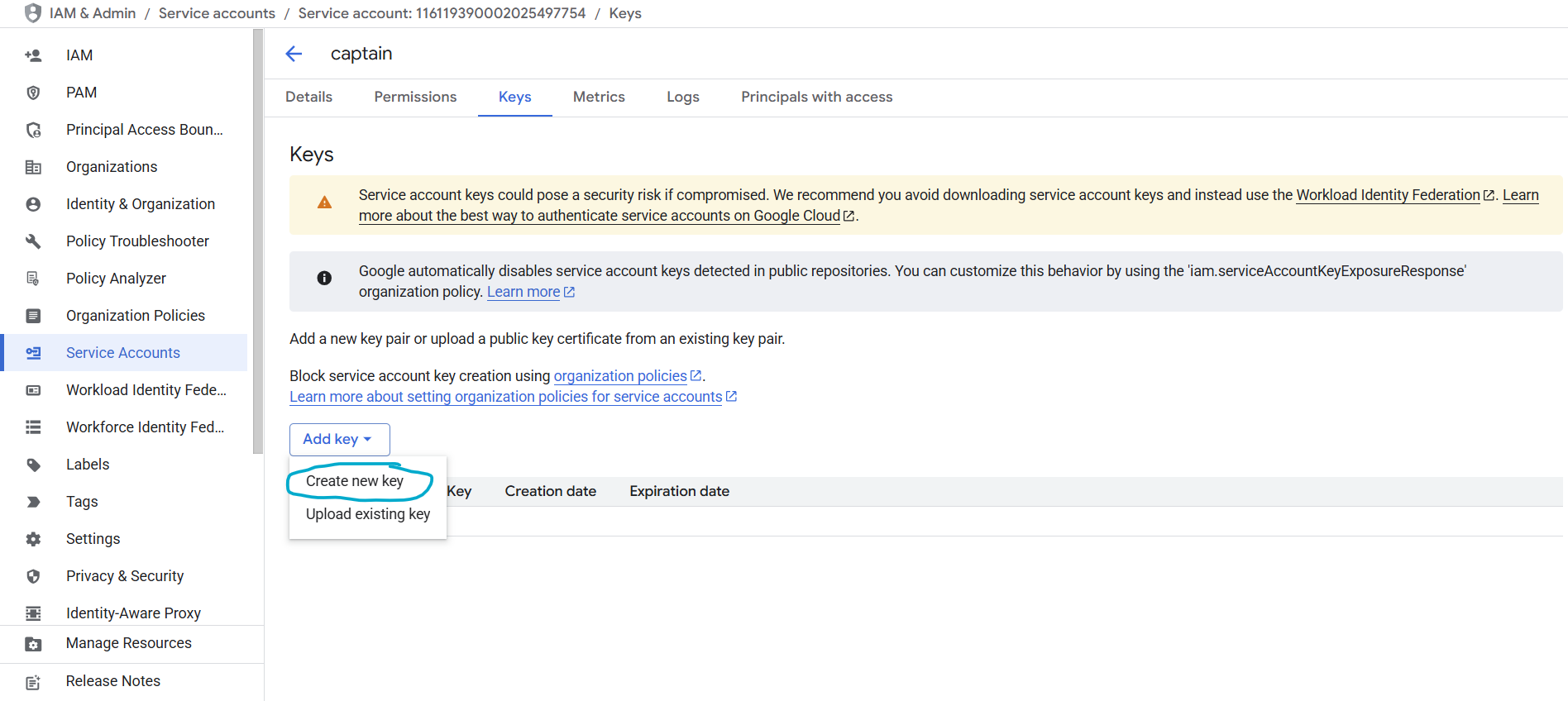
3. Navigate to the **Keys** tab
4. Click **Add Key** → **Create New Key**
5. Select **JSON** as the key type
6. Click **Create**
### Step 3: Grant Permissions
Under **Grant this service account access to project**, choose the appropriate role based on your needs:
**For read-only access to buckets/objects:**
* Role: **Storage Object Viewer** (`roles/storage.objectViewer`)
**For read/write access:**
* Role: **Storage Object Admin** (`roles/storage.objectAdmin`)
**For full bucket management:**
* Role: **Storage Admin** (`roles/storage.admin`)
Click **Continue** → **Done**
### Step 4: Create and Download JSON Key
1. You'll now see your new service account in the list
2. Click on the service account name
3. Navigate to the **Keys** tab
4. Click **Add Key** → **Create New Key**
5. Select **JSON** as the key type
6. Click **Create**
 The JSON key file will automatically download to your computer. This file contains your service account credentials.
### JSON Key File Format
Your downloaded JSON key will look like this:
```json
{
"type": "service_account",
"project_id": "your-project-id",
"private_key_id": "abc123...",
"private_key": "-----BEGIN PRIVATE KEY-----\n...\n-----END PRIVATE KEY-----\n",
"client_email": "captain-storage-access@your-project.iam.gserviceaccount.com",
"client_id": "123456789",
"auth_uri": "https://accounts.google.com/o/oauth2/auth",
"token_uri": "https://oauth2.googleapis.com/token",
"auth_provider_x509_cert_url": "https://www.googleapis.com/oauth2/v1/certs",
"client_x509_cert_url": "https://www.googleapis.com/robot/v1/metadata/x509/..."
}
```
### Using Google Cloud Service Accounts with Captain
Store the JSON key file securely (e.g., in a secret management service or as an environment variable)
***
## Azure Blob Storage Setup
### Step 1: Create a Storage Account
1. Log in to the [Azure Portal](https://portal.azure.com/)
2. Navigate to **Storage accounts** → **Create**
3. Select your **Subscription** and **Resource group** (or create a new one)
4. Enter a **Storage account name** (e.g., `captaindocuments`)
5. Select a **Region** closest to your operations
6. Select **Standard** performance and **LRS** (Locally-redundant storage) for general use
7. Click **Review + create** → **Create**
### Step 2: Create a Container
1. Open your new storage account
2. Navigate to **Data storage** → **Containers**
3. Click **+ Container**
4. Enter a container name (e.g., `documents`)
5. Set **Private access level** (no anonymous access)
6. Click **Create**
***
## Azure Blob Storage Credentials
To index files from Azure Blob Storage, you'll need your **Storage Account Name** and **Account Key**.
### Step 1: Get Your Account Name and Key
1. Open your storage account in the [Azure Portal](https://portal.azure.com/)
2. Navigate to **Security + networking** → **Access keys**
3. Your **Storage account name** is displayed at the top
4. Click **Show** next to either key to reveal the **Account Key** (base64-encoded)
5. Copy both values
**Important**: Treat the account key like a password. Store it securely (e.g., in a secret management service or as an environment variable).
### Step 2: Use with Captain
Pass the account name, account key, and container name when calling the indexing endpoint:
```bash title="curl"
curl -X POST https://api.runcaptain.com/v2/collections/my_collection/index/azure \
-H "Authorization: Bearer $CAPTAIN_API_KEY" \
-H "Content-Type: application/json" \
-d '{
"container_name": "documents",
"account_name": "captaindocuments",
"account_key": "your_account_key_base64",
"processing_type": "advanced"
}'
```
```python title="Python"
import requests
response = requests.post(
f"{BASE_URL}/v2/collections/my_collection/index/azure",
headers={
"Authorization": f"Bearer {API_KEY}",
"Content-Type": "application/json"
},
json={
"container_name": "documents",
"account_name": "captaindocuments",
"account_key": "your_account_key_base64",
"processing_type": "advanced" # Required: "advanced" or "basic"
}
)
job_id = response.json()['job_id']
print(f"Indexing started! Job ID: {job_id}")
```
```typescript title="TypeScript"
const response = await fetch(
`${BASE_URL}/v2/collections/my_collection/index/azure`,
{
method: "POST",
headers: {
"Authorization": `Bearer ${API_KEY}`,
"Content-Type": "application/json"
},
body: JSON.stringify({
container_name: "documents",
account_name: "captaindocuments",
account_key: "your_account_key_base64",
processing_type: "advanced" // Required: "advanced" or "basic"
})
}
);
const result = await response.json();
console.log(`Indexing started! Job ID: ${result.job_id}`);
```
### Required Azure Permissions
The account key provides full access to all containers in the storage account. For more granular control, you can use **Shared Access Signatures (SAS)** with the following minimum permissions:
* **Read**. to access blob contents
* **List**. to enumerate blobs in the container
You can generate a SAS token from the Azure Portal under your storage account's **Shared access signature** settings.
***
## Cloudflare R2 Setup
### Step 1: Create an R2 Bucket
1. Log in to the [Cloudflare Dashboard](https://dash.cloudflare.com/)
2. Navigate to **R2 Object Storage** → **Create bucket**
3. Enter a bucket name (e.g., `captain-documents`)
4. Select a location hint (optional. R2 automatically distributes globally)
5. Click **Create bucket**
***
## Cloudflare R2 Credentials
To index files from Cloudflare R2, you'll need your **Account ID**, an **Access Key ID**, and a **Secret Access Key**.
### Step 1: Find Your Account ID
1. Log in to the [Cloudflare Dashboard](https://dash.cloudflare.com/)
2. Your **Account ID** is visible in the URL: `https://dash.cloudflare.com/
The JSON key file will automatically download to your computer. This file contains your service account credentials.
### JSON Key File Format
Your downloaded JSON key will look like this:
```json
{
"type": "service_account",
"project_id": "your-project-id",
"private_key_id": "abc123...",
"private_key": "-----BEGIN PRIVATE KEY-----\n...\n-----END PRIVATE KEY-----\n",
"client_email": "captain-storage-access@your-project.iam.gserviceaccount.com",
"client_id": "123456789",
"auth_uri": "https://accounts.google.com/o/oauth2/auth",
"token_uri": "https://oauth2.googleapis.com/token",
"auth_provider_x509_cert_url": "https://www.googleapis.com/oauth2/v1/certs",
"client_x509_cert_url": "https://www.googleapis.com/robot/v1/metadata/x509/..."
}
```
### Using Google Cloud Service Accounts with Captain
Store the JSON key file securely (e.g., in a secret management service or as an environment variable)
***
## Azure Blob Storage Setup
### Step 1: Create a Storage Account
1. Log in to the [Azure Portal](https://portal.azure.com/)
2. Navigate to **Storage accounts** → **Create**
3. Select your **Subscription** and **Resource group** (or create a new one)
4. Enter a **Storage account name** (e.g., `captaindocuments`)
5. Select a **Region** closest to your operations
6. Select **Standard** performance and **LRS** (Locally-redundant storage) for general use
7. Click **Review + create** → **Create**
### Step 2: Create a Container
1. Open your new storage account
2. Navigate to **Data storage** → **Containers**
3. Click **+ Container**
4. Enter a container name (e.g., `documents`)
5. Set **Private access level** (no anonymous access)
6. Click **Create**
***
## Azure Blob Storage Credentials
To index files from Azure Blob Storage, you'll need your **Storage Account Name** and **Account Key**.
### Step 1: Get Your Account Name and Key
1. Open your storage account in the [Azure Portal](https://portal.azure.com/)
2. Navigate to **Security + networking** → **Access keys**
3. Your **Storage account name** is displayed at the top
4. Click **Show** next to either key to reveal the **Account Key** (base64-encoded)
5. Copy both values
**Important**: Treat the account key like a password. Store it securely (e.g., in a secret management service or as an environment variable).
### Step 2: Use with Captain
Pass the account name, account key, and container name when calling the indexing endpoint:
```bash title="curl"
curl -X POST https://api.runcaptain.com/v2/collections/my_collection/index/azure \
-H "Authorization: Bearer $CAPTAIN_API_KEY" \
-H "Content-Type: application/json" \
-d '{
"container_name": "documents",
"account_name": "captaindocuments",
"account_key": "your_account_key_base64",
"processing_type": "advanced"
}'
```
```python title="Python"
import requests
response = requests.post(
f"{BASE_URL}/v2/collections/my_collection/index/azure",
headers={
"Authorization": f"Bearer {API_KEY}",
"Content-Type": "application/json"
},
json={
"container_name": "documents",
"account_name": "captaindocuments",
"account_key": "your_account_key_base64",
"processing_type": "advanced" # Required: "advanced" or "basic"
}
)
job_id = response.json()['job_id']
print(f"Indexing started! Job ID: {job_id}")
```
```typescript title="TypeScript"
const response = await fetch(
`${BASE_URL}/v2/collections/my_collection/index/azure`,
{
method: "POST",
headers: {
"Authorization": `Bearer ${API_KEY}`,
"Content-Type": "application/json"
},
body: JSON.stringify({
container_name: "documents",
account_name: "captaindocuments",
account_key: "your_account_key_base64",
processing_type: "advanced" // Required: "advanced" or "basic"
})
}
);
const result = await response.json();
console.log(`Indexing started! Job ID: ${result.job_id}`);
```
### Required Azure Permissions
The account key provides full access to all containers in the storage account. For more granular control, you can use **Shared Access Signatures (SAS)** with the following minimum permissions:
* **Read**. to access blob contents
* **List**. to enumerate blobs in the container
You can generate a SAS token from the Azure Portal under your storage account's **Shared access signature** settings.
***
## Cloudflare R2 Setup
### Step 1: Create an R2 Bucket
1. Log in to the [Cloudflare Dashboard](https://dash.cloudflare.com/)
2. Navigate to **R2 Object Storage** → **Create bucket**
3. Enter a bucket name (e.g., `captain-documents`)
4. Select a location hint (optional. R2 automatically distributes globally)
5. Click **Create bucket**
***
## Cloudflare R2 Credentials
To index files from Cloudflare R2, you'll need your **Account ID**, an **Access Key ID**, and a **Secret Access Key**.
### Step 1: Find Your Account ID
1. Log in to the [Cloudflare Dashboard](https://dash.cloudflare.com/)
2. Your **Account ID** is visible in the URL: `https://dash.cloudflare.com/