Quickstart

Ahoy there! Let’s get you up and running with Captain. We’ve made this quick and easy.

Prerequisites

Get Your API Credentials

You’ll need:

  • API Key from Captain API Studio (format: cap_dev_..., cap_prod_...)
  • Organization ID (UUID format, also available in the Studio)

Store your API key securely, such as in an environment variable:

Environment Variables
1CAPTAIN_API_KEY="cap_prod_xxxxxxxxxxxxxxxxxxxxxxxxxxxxxxxx"
2CAPTAIN_ORG_ID="xxxxxxxx-xxxx-xxxx-xxxx-xxxxxxxxxxxx"

[1/3] Create a Collection

In order for Captain to be able to search files, we need to first create a Collection for our files to be indexed into.

This is as easy as a single API call: See the Create Collection - API Reference

$curl -X PUT https://api.runcaptain.com/v2/collections/my_first_collection \
> -H "Authorization: Bearer $CAPTAIN_API_KEY" \
> -H "X-Organization-ID: $CAPTAIN_ORG_ID" \
> -H "Content-Type: application/json" \
> -d '{"description": "My first Captain Collection"}'

After the collection is created, we should get a response like this:

Example: (201 Created)
1{
2 "collection_name": "my_first_collection",
3 "collection_description": "My first Captain Collection",
4 "status": "created",
5 "message": "Collection created successfully"
6}

[2/3] Index Files into Collections

Next, we need to index our files into the collection.

Captain currently supports indexing into collections from AWS S3 and Google Cloud Storage (GCS) buckets.

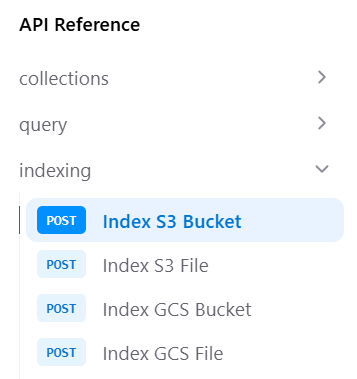
Captain Indexing API Endpoints

Option A: Index AWS S3 Bucket

See the Index S3 Bucket - API Reference

Need AWS credentials? See the Connect Cloud Storage Guide for step-by-step instructions.

$curl -X POST https://api.runcaptain.com/v2/collections/my_first_collection/index/s3 \
> -H "Authorization: Bearer $CAPTAIN_API_KEY" \
> -H "X-Organization-ID: $CAPTAIN_ORG_ID" \
> -H "Content-Type: application/json" \
> -d '{
> "bucket_name": "my-s3-bucket",
> "aws_access_key_id": "AKIAIOSFODNN7EXAMPLE",
> "aws_secret_access_key": "wJalrXUtnFEMI/K7MDENG/bPxRfiCYEXAMPLEKEY",
> "bucket_region": "us-east-1"
> }'

Option B: Index Google Cloud Storage Bucket

See the Index GCS Bucket - API Reference

Need GCS credentials? See the Connect Cloud Storage Guide for step-by-step instructions.

$curl -X POST https://api.runcaptain.com/v2/collections/my_first_collection/index/gcs \
> -H "Authorization: Bearer $CAPTAIN_API_KEY" \
> -H "X-Organization-ID: $CAPTAIN_ORG_ID" \
> -H "Content-Type: application/json" \
> -d '{
> "bucket_name": "my-gcs-bucket",
> "service_account_json": "{\"type\":\"service_account\",\"project_id\":\"...\"}"
> }'

Monitor Indexing Progress

See the Get Job Status - API Reference

1import time
2
3while True:
4 response = requests.get(
5 f"{BASE_URL}/v2/jobs/{job_id}",
6 headers={"Authorization": f"Bearer {API_KEY}"}
7 )
8
9 result = response.json()
10 status = result.get('status')
11 progress = result.get('progress_message', '')
12 print(f"Status: {status} - {progress}")
13
14 if status in ['completed', 'failed', 'cancelled']:
15 if status == 'completed':
16 print("Indexing complete!")
17 final = result.get('result', {})
18 print(f"Files indexed: {final.get('files_indexed', 0)}")
19 break
20
21 time.sleep(5)

[3/3] Querying Collections

Once your files are indexed, you can query the collection. See the Query Collection - API Reference

Querying with LLM Inference

Query your collection with AI-generated answers:

$curl -X POST https://api.runcaptain.com/v2/collections/my_first_collection/query \
> -H "Authorization: Bearer $CAPTAIN_API_KEY" \
> -H "X-Organization-ID: $CAPTAIN_ORG_ID" \
> -H "Content-Type: application/json" \
> -d '{
> "query": "What are the revenue projections for Q4?",
> "include_documents": true,
> "inference": true,
> "top_k": 80
> }'

Querying without LLM Inference

Fetch relevant context without AI-generated answers:

$curl -X POST https://api.runcaptain.com/v2/collections/my_first_collection/query \
> -H "Authorization: Bearer $CAPTAIN_API_KEY" \
> -H "X-Organization-ID: $CAPTAIN_ORG_ID" \
> -H "Content-Type: application/json" \
> -d '{
> "query": "What are the revenue projections for Q4?",
> "inference": false,
> "top_k": 20
> }'

Querying with Streaming

Get real-time responses as they’re generated:

1import json
2
3response = requests.post(
4 f"{BASE_URL}/v2/collections/{COLLECTION_NAME}/query",
5 headers={
6 "Authorization": f"Bearer {API_KEY}",
7 "X-Organization-ID": ORG_ID,
8 "Content-Type": "application/json"
9 },
10 json={
11 "query": "Summarize all security incidents mentioned",
12 "inference": True, # Get LLM-generated answers based on the relevant sections that were retrieved
13 "stream": True
14 },
15 stream=True # Important: enable streaming
16)
17
18# Process streamed response
19for line in response.iter_lines():
20 if line:
21 line_text = line.decode('utf-8')
22 if line_text.startswith('data: '):
23 data = line_text[6:]
24 try:
25 parsed = json.loads(data)
26 if parsed.get('type') == 'stream_complete':
27 print("\nStream complete!")
28 break
29 except json.JSONDecodeError:
30 print(data, end='', flush=True)

Other Info

Environment Scoping

API keys are scoped to environments:

  • Development (cap_dev_*) - For testing and development
  • Staging (cap_stage_*) - For pre-production testing
  • Production (cap_prod_*) - For production use

Collections created with a development key can only be accessed with development keys from the same organization.

Supported File Types

Captain supports 30+ file types including:

Documents: PDF, DOCX, TXT, MD, RTF, ODT Spreadsheets: XLSX, XLS, CSV Presentations: PPTX, PPT Images: JPG, PNG (with OCR) Code: PY, JS, TS, HTML, CSS, PHP, JAVA Data: JSON, XML

Contact support@runcaptain.com to request file types.

Getting Help

Need assistance? We’re here to help!